Getting Started
A quick tour of the Secure AI Systems chat screen.
Welcome. This page shows you where to find key controls in the Secure AI Systems chat interface—settings, conversation history, and optional features like Web Search and Images.
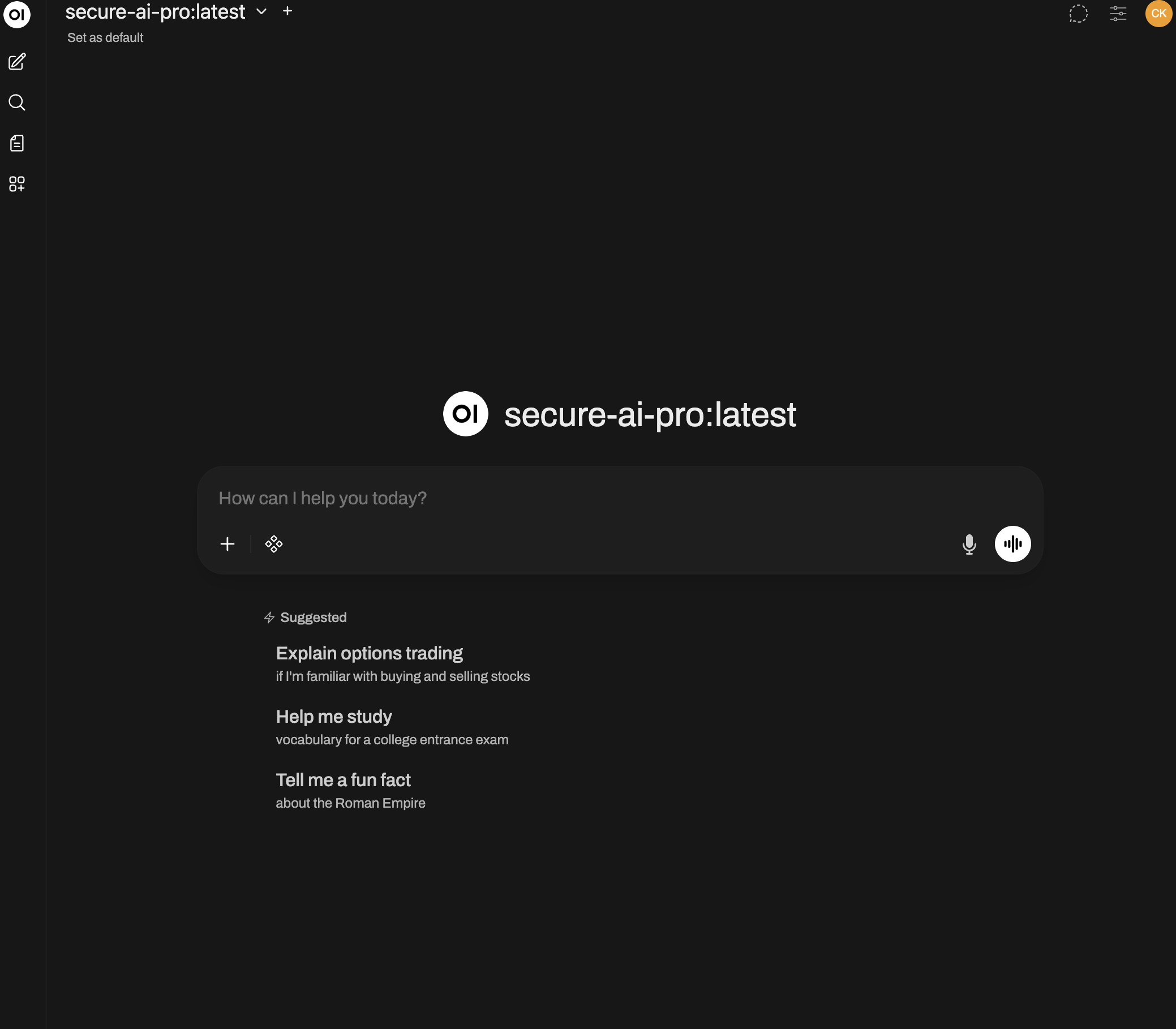
User Menu (top right)
Click your initials to open the user menu. From there you can change settings such as your password.
Chat Input (center)
Type your message in the input area and send it to begin a conversation.
Web Search & Images (star icon)
Click the star icon to enable Web Search. In the Pro environment, you can also enable Images. When you’re finished, turning these back off can improve response speed.
Chats Panel (top left)
Open the left panel to view existing chats, resume a conversation, or start a new one.